Pair your phone while the rental car is parked, confirm the right device, and test calls and audio before you leave the lot. If Bluetooth is unstable or distracting, use a cable or other approved hands-free option instead.
Connecting your phone to a rental car Bluetooth system is usually simple, but the safest approach is to do it before driving, keep personal data to a minimum, and follow the rental company’s rules. If the car or phone will not pair cleanly, use a cable or mount instead of trying to troubleshoot on the road.
- Pair parked: Set up Bluetooth before driving to reduce distraction and setup mistakes.
- Protect privacy: Avoid saving contacts, messages, or call history in a shared rental vehicle.
- Test first: Check calls, music, and navigation audio before leaving the lot.
- Use backups: A USB cable or phone mount can be safer if Bluetooth is unreliable.
How to Safely Connect Your Phone to a Rental Car Bluetooth System: Quick Answer and What You Need to Know
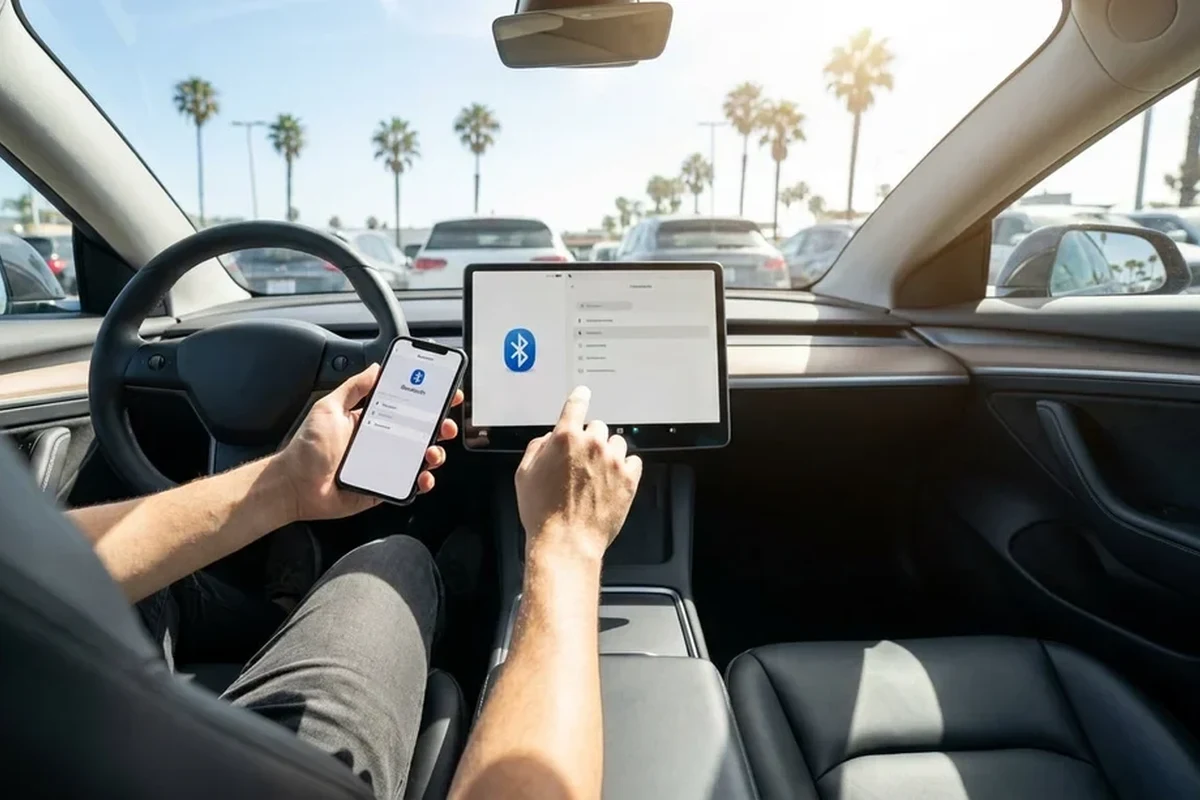
The safest way to connect your phone is to park the vehicle, open the car’s Bluetooth menu, pair only the device you need, and confirm calls and audio before leaving the lot. Because rental vehicles are shared, avoid saving contacts, messages, or other personal data unless the car clearly lets you remove it afterward and the rental company allows it.
Who This Guide Is For in 2025: Travelers, Business Renters, Families, and Road-Trippers
This guide is for anyone who wants hands-free calling, navigation audio, or music in a rental without creating setup problems. It is especially useful for airport renters juggling luggage, business travelers switching between work and personal phones, families sharing one vehicle, and road-trippers who need reliable audio for long drives.
Before You Pair: Rental Company Policies, Driver Responsibilities, and Vehicle Compatibility
Rental companies and vehicle models vary, so do not assume every car will support the same Bluetooth features. Some systems handle calls and music well but have limited phonebook syncing, while others may require you to approve prompts on the dashboard screen or steering wheel controls.
Rental terms, infotainment features, and saved-device rules can vary by company, location, and vehicle class. Check the rental agreement and the vehicle’s owner manual if available.
Check the Car’s Infotainment System, Bluetooth Version, and Phone Compatibility
Before pairing, look for the Bluetooth option in the infotainment screen, steering wheel controls, or settings menu. Most modern phones work with most newer rental cars, but older vehicles may have limited compatibility, especially for newer audio codecs, contact syncing, or voice assistant features.
If your phone is set to “discoverable,” that usually helps the car find it. Still, the exact pairing steps can differ by brand, so follow the prompts on the vehicle screen rather than guessing.
Review Any Rental Restrictions on Pairing, Profiles, and Saved Devices
Some rentals may already have prior paired devices from previous users, and some systems allow multiple profiles. If the car asks whether to import contacts, recent calls, or messages, choose the most privacy-conscious option unless you truly need those features and the rental company’s policy allows it.
Do not modify, unplug, reset, bypass, or tamper with a rental vehicle system without written permission from the rental company.
Step-by-Step: Safely Connecting Your Phone Without Causing Setup Problems
Use a calm, parked setup process so you can confirm the connection once and avoid distraction later. If the car supports Bluetooth calling and audio, a clean first pairing usually makes the rest of the trip easier.
Turn on Bluetooth, unlock your phone, and keep the vehicle in park with the parking brake engaged if needed. Close other apps if they are causing pop-ups, and avoid trying to pair while the car is moving.
Select the car’s pairing mode, then choose the rental vehicle on your phone and confirm the code if one appears. If multiple devices are nearby, make sure you are connecting to the correct car before accepting any prompts.
Make a brief test call, play a short audio clip, and check navigation voice prompts at a low volume. Confirm that the car is using the correct source so you do not have to fumble with settings while driving away.
Prepare Your Phone Settings and Keep the Car Parked
Start with a fully unlocked phone and, if possible, reduce interruptions by silencing unnecessary notifications during setup. If the rental car is in a busy airport lot, take a moment to finish pairing only after you are seated and stationary.
If your phone has a “forget this device” option from a previous rental, remove old entries before pairing to reduce confusion and connection conflicts.
Use the Vehicle’s Bluetooth Menu to Pair and Confirm the Correct Device
Most systems will ask you to add a phone, search for nearby devices, or confirm a passkey. Read the screen carefully, because pairing the wrong device can lead to someone else’s audio, calls, or contacts appearing on the system.
Test Calls, Audio, and Navigation Before Leaving the Lot
A short test is worth doing because it can reveal low volume, delayed audio, or a microphone issue before you join traffic. If something sounds off, fix it while parked rather than trying to troubleshoot on a highway entrance ramp.
Safety First: Common Mistakes to Avoid When Using Bluetooth in a Rental Car
Bluetooth is meant to reduce distraction, not create a new one. The main goal is to set it up once, keep your attention on the road, and avoid leaving personal data behind in a shared vehicle.
Do Not Pair While Driving or While the Vehicle Is in Motion
Even a quick menu search can take your eyes off the road long enough to create risk. If the connection fails after you leave, pull over safely when appropriate or wait until your next stop to retry.
If a warning light appears while driving, pull over safely when appropriate and contact the rental company or roadside assistance.
Avoid Saving Personal Data, Contacts, or Messages in Shared Vehicles
Rental cars are temporary shared spaces, so keep your personal information exposure low. If the system offers to sync contacts, messages, or call history, decline unless you clearly need those features and know how to remove them later.
Watch for Distracting Notifications, Auto-Play, and Volume Issues
Some phones begin autoplaying music or surfacing message alerts as soon as they connect. Before driving off, lower the volume, check media source selection, and consider turning off notification previews so the car does not become a distraction.
Practical Gear and Setup Tips for a Better Rental-Car Bluetooth Experience
Bluetooth is convenient, but it is not always the best option for every trip or every vehicle. A small amount of travel gear can make a rental easier to use without modifying anything in the car.
- Phone mount
- USB car charger
- Tire inflator
- Flashlight
- Basic emergency kit
When a USB Cable, Phone Mount, or Charger Is a Better Choice
If Bluetooth is unstable, a USB connection may provide more reliable audio and charging at the same time, depending on the car. A phone mount is often the safest backup for navigation because it keeps the screen visible without requiring you to hold the device.
- More stable audio in some vehicles
- Can charge the phone during long drives
- Requires the right cable and port
- May still need setup time in the rental lot
Compact, Travel-Friendly Accessories That Work Well With Rentals
Look for small accessories that pack easily and do not leave marks or require installation. A short charging cable, a vent-friendly mount, and a simple 12V charger are usually easier to manage in a temporary car than bulky electronics or hard-mounted gear.
How to Choose Gear Based on Trip Type, Device Type, and Car Class
Business travelers often value speed and reliability, while families may need multiple charging options and easy-to-reach controls. Road-trippers may care more about power ports, cable length, and hands-free navigation than about advanced infotainment features.
- Verify compatibility, policy, vehicle condition, return rules, and travel needs.
- Keep receipts, photos, rental agreement details, and emergency contact information accessible.
Troubleshooting Bluetooth Problems in Rental Cars Without Risking the Vehicle
Most Bluetooth issues are simple setup problems, not vehicle defects. Start with safe, non-invasive steps first, and contact the rental company if the system appears broken or if the car is not behaving normally.
What to Try If the Phone Will Not Pair, Disconnects, or Has Poor Audio
Turn Bluetooth off and back on, confirm the phone is discoverable, and make sure no other nearby device is trying to connect. If audio is choppy, check whether the car is set to the wrong source, whether the phone is too far away, or whether a cable connection would be more reliable for the trip.
- Restart Bluetooth on the phone and retry while parked
- Confirm the correct audio source and pairing code
- Use a cable or mount if Bluetooth remains unreliable
- Digging through menus while driving
- Deleting unknown system settings or profiles without guidance
- Forcing changes to the vehicle’s software or hardware
When to Ask the Rental Counter for a Different Vehicle or Help
If the Bluetooth system is clearly malfunctioning, the screen is frozen, or the car has other warning signs, ask the rental counter for help before leaving the airport or branch. A different vehicle may be the simplest solution if you depend on hands-free calling or navigation for the trip.
Before leaving the airport rental lot, confirm the fuel level, mileage, toll policy, return location, and after-hours return rules.
Final Recommendation: The Safest Way to Use Bluetooth in a Rental Car
The safest approach is to pair your phone while parked, keep the setup minimal, and test everything before you drive away. If the rental car’s Bluetooth is unreliable or too distracting to manage, use a cable, mount, or another approved hands-free option instead of forcing the connection.
- Pair only when parked and ready to test the connection.
- Limit personal data sharing in a shared rental vehicle.
- Choose the simplest setup that supports safe, hands-free driving.
Frequently Asked Questions
Not always. Compatibility varies by vehicle model, infotainment system, and rental company, so check the car’s menus and the rental agreement before you rely on Bluetooth.
It is usually better not to. Rental cars are shared vehicles, so keep personal data to a minimum unless you know how to remove it afterward and the rental company allows it.
Try pairing while parked, confirm Bluetooth is on and discoverable, and make sure the car is in pairing mode. If it still fails, use a cable or ask the rental counter for help.
No. Set up and troubleshoot while parked, or pull over safely if you need to make changes later. Avoid taking your eyes off the road for menu navigation.
Ask whether the car supports phone calls, audio streaming, contact syncing, and multiple devices. Also confirm any restrictions on saved profiles or personal data.
Use an approved USB cable, a phone mount, or another hands-free setup that keeps you focused on driving. Choose the simplest option that works reliably for your trip.